Documents
Upload and photograph documents
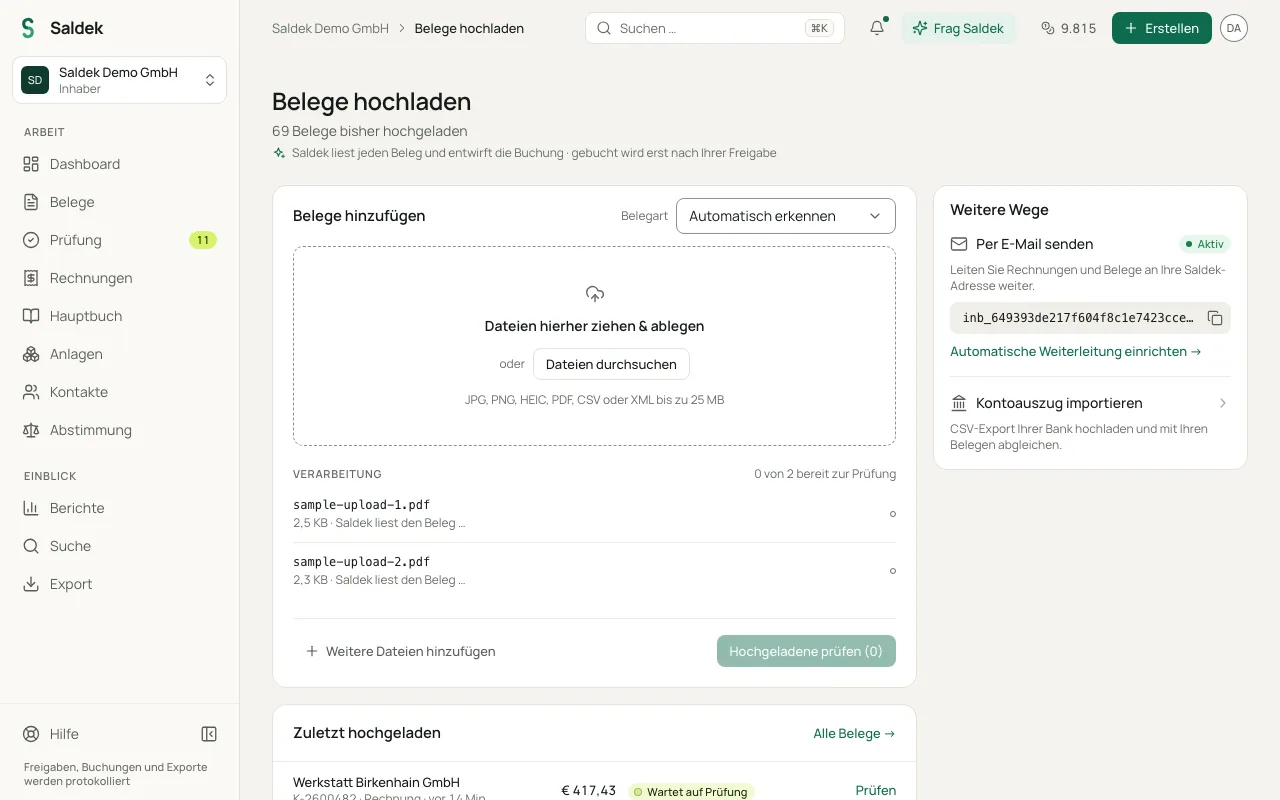
Upload documents to Saldek from your browser. Saldek processes PDFs, image files, and spreadsheets, extracts amounts and vendor details with AI, and sends the prepared booking to your review queue.
Supported formats and document types
- File formats: JPG, PNG, HEIC, PDF, CSV, or XML, up to 25 MB per file.
- Document types: Invoices with multiple line items and tax rates, cash receipts, and structured e-invoices. Saldek extracts ZUGFeRD, Factur-X, XRechnung, and ebInterface files.
- Bank statements: Import bank statements under “Reconciliation” with “Import statement”. A statement you upload here is only filed: it gets no draft entry, and its transactions are not imported.
Upload documents in your browser
- Open “Upload documents”: Select “Create” › “Upload document” at the top, or the “Upload document” button on the “Documents” page.
- Add files: Drag and drop documents into the upload area, or select “Browse files”.
- Choose a document type: Select the appropriate “Document type” if needed.
- Check the processing queue: Saldek moves through Upload, OCR, AI extraction, and Validation. The status then shows how many documents are ready for review, such as “n of m ready for review”.
Photograph paper receipts with your smartphone
Saldek has no mobile app. Open Saldek in your smartphone’s browser and select “Take a photo” on the “Upload documents” page to photograph the document with the camera. Upload existing photos like any other file; Saldek supports HEIC files.
- Lay the document flat and smooth out any folds.
- Fit the whole document, including all edges and corners, in the frame.
- Use good lighting and focus the image to help Saldek read the text.
Document list and details
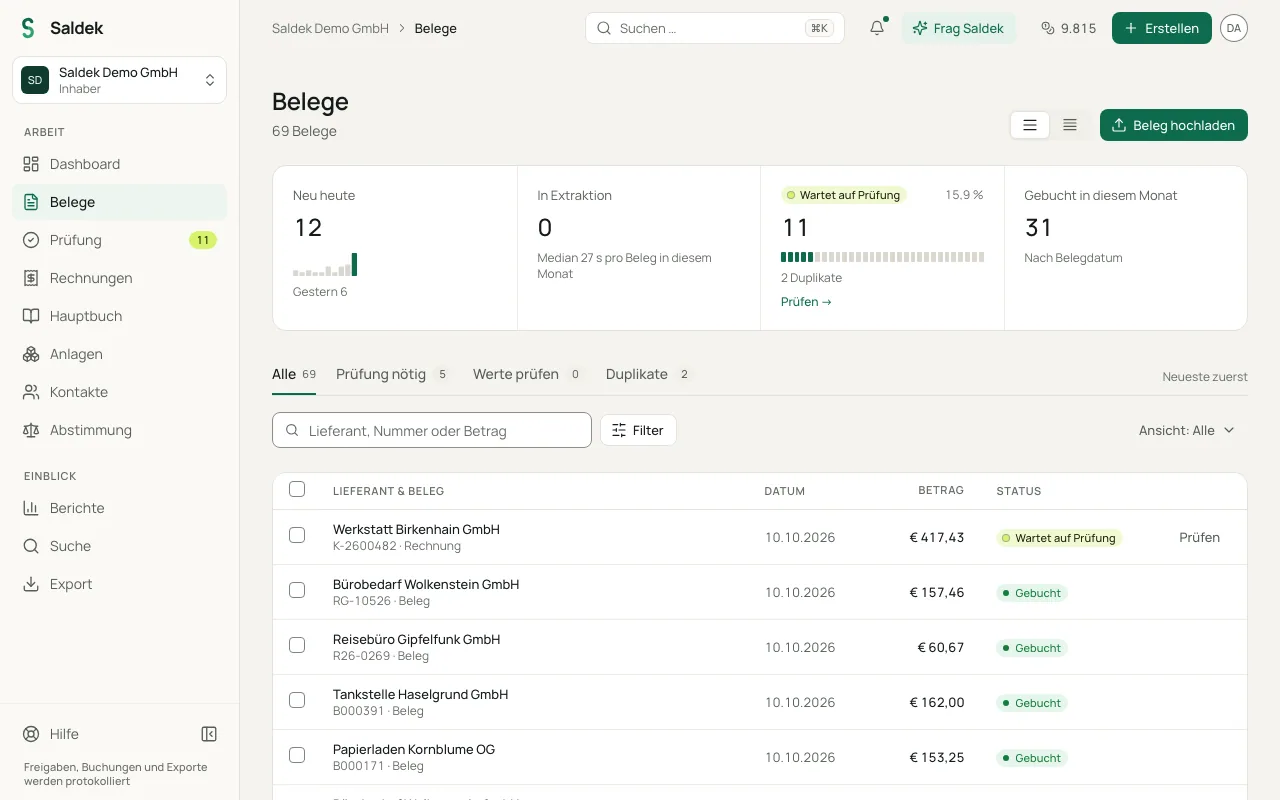
- Open the document list: Under “Documents”, find all captured documents sorted by status, with filters and bulk-action options.
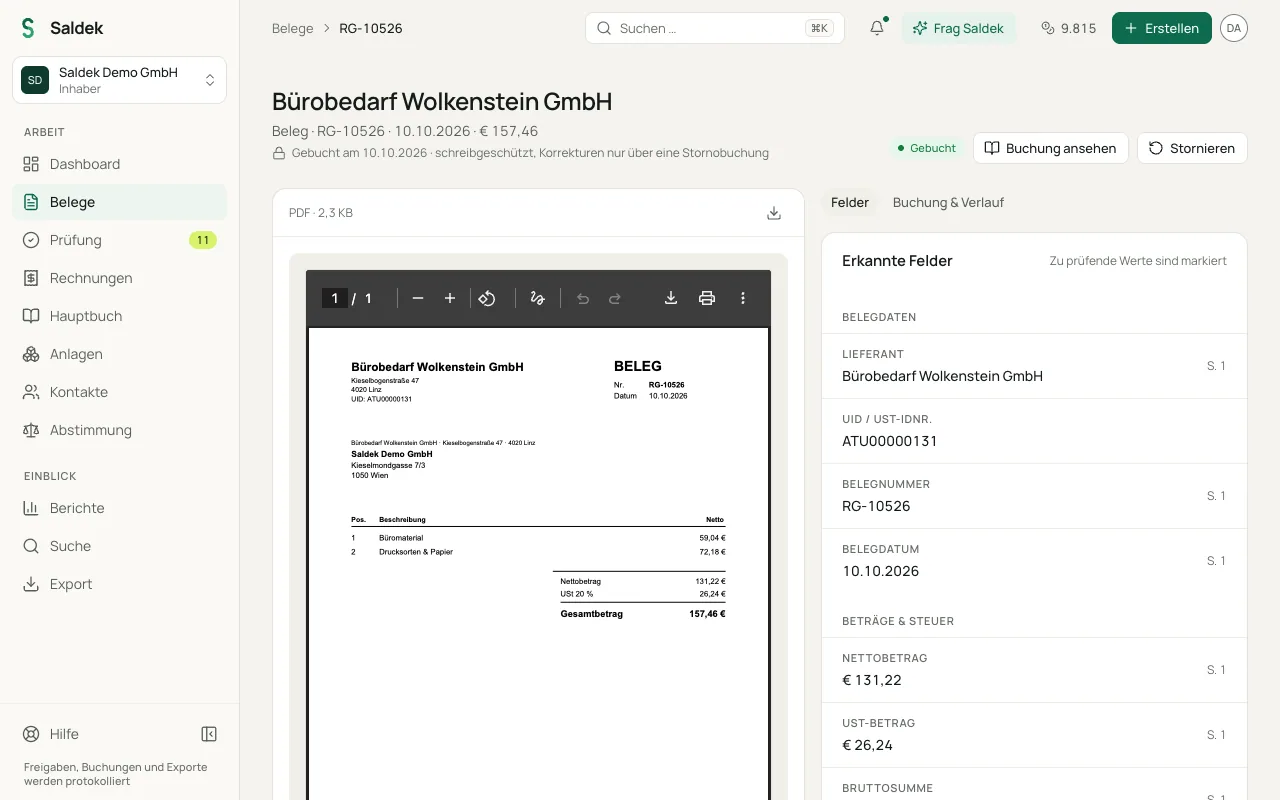
- Review document details: The detail view shows the original preview on the left, and the extracted fields and activity timeline on the right.
- Uploaded, but not read yet: Saldek has the file but has not read it, for example because you do not have enough credits. “Retry” starts reading.
- “Not bookable”: The document needs no booking, for example a quote, a delivery note, or a bank statement. Saldek files it without a draft entry and shows the reason.
- “Before your books start”: The document is dated before your first fiscal year and is filed without a booking. To book it, add the earlier fiscal year and have the document checked again.
- “Mailbox suggestions”: Possible invoices from your connected mailbox wait here for your decision.
- “Payment pending”: With cash-basis accounting (E/A), the “Payment” filter shows the purchases whose payment Saldek has not seen yet.
Other ways to send documents
During the trial and with the Starter plan or higher, you can send documents by e-mail forwarding, Google Drive, or connected mailboxes (Gmail and Outlook) as well as upload them in the browser. In read-only mode without a plan, you cannot upload new documents; existing documents stay visible and downloadable.
Frequently asked questions
Which file types can I upload?
Upload JPG, PNG, HEIC, PDF, CSV, or XML files up to 25 MB each.
Can I photograph receipts with my phone?
Yes. Take a photo with your smartphone and upload the image, including HEIC files, to Saldek from your browser. Saldek does not have a mobile app.
What does the message “Couldn’t read this document — try a clearer scan.” mean?
The image quality or resolution was too low for text recognition. If extraction fails, Saldek returns all reserved credits.
What does “Uploaded, but not read: not enough credits” mean?
The file is in Saldek but was not read because you do not have enough credits. Top up your credits under “Billing” and try again.
Last updated: