Documents
E-mail forwarding
Each organization on the Starter plan or higher has its own inbound address under the in.saldek.eu domain. Forward incoming invoices or documents to this address, and Saldek adds their attachments to your bookkeeping records.
Find and manage your inbound address
- Open integrations: Go to “Settings” → “Integrations”.
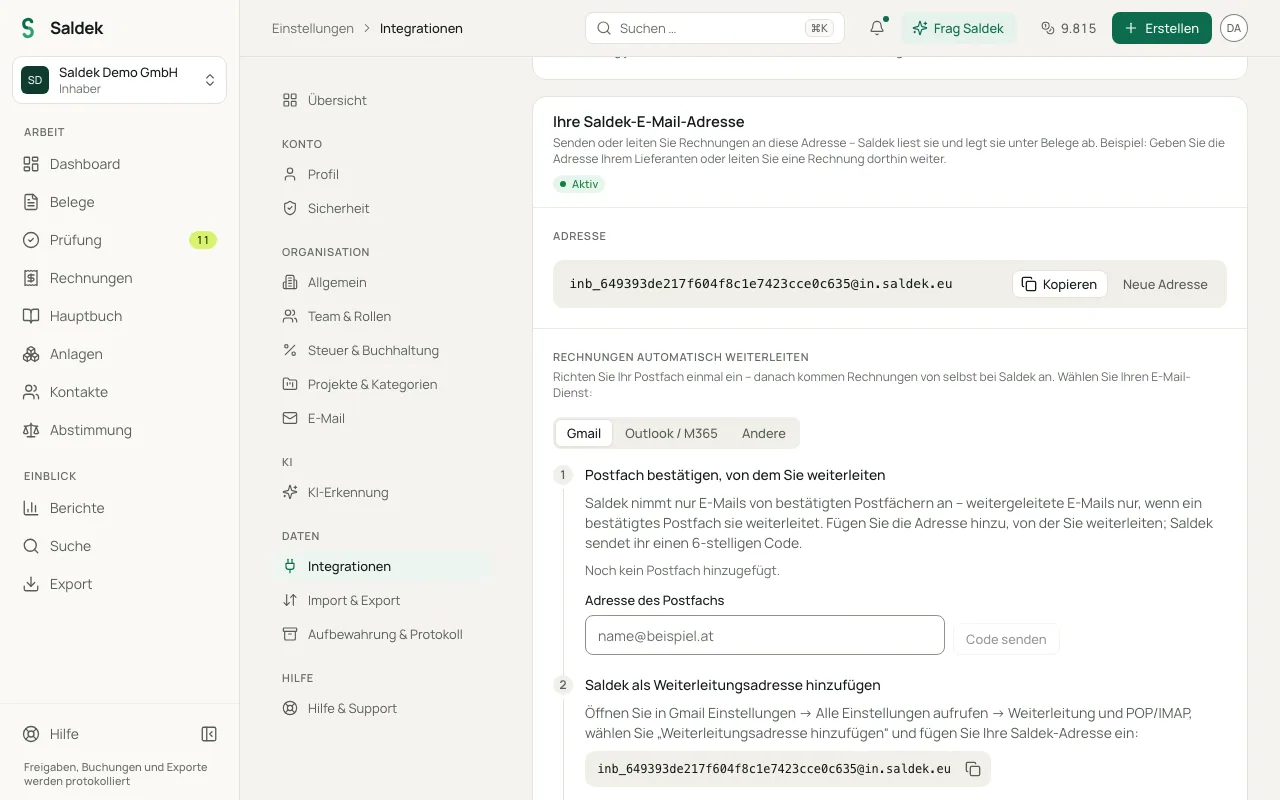
- Copy your address: Find it under “Your Saldek e-mail address”. It uses the in.saldek.eu domain. Select “Copy” to copy it. The same address is also shown in the “Send by e-mail” box on the “Upload documents” page, with “Copy e-mail address”.
- Verify the sender mailbox: Saldek accepts e-mail only from verified mailboxes. Under “Forward invoices automatically”, enter the address you’ll forward from and select “Send code”. Saldek sends a 6-digit code to that address. Admins and owners add mailboxes.
- Change the address if needed: Select “New address” to generate another inbound address. Your previous address will stop accepting e-mail.
Set up automatic forwarding
Under “Forward invoices automatically”, choose your e-mail service (Gmail, Outlook / M365, or Others) and follow the instructions. Verify your mailbox, add Saldek as a forwarding address, confirm the request, set a rule to forward invoices only, and send a test invoice. You’ll find the test invoice under “Recent messages” and in your documents. If you generate a new inbound address, update your forwarding settings.
- Outlook.com, Hotmail, and Live: Saldek does not accept automatic forwarding from these mailboxes. Forward invoices from them by hand from your verified mailbox instead.
- Microsoft 365: Microsoft 365 forwards under your company’s domain. Saldek accepts this only after an admin has allowed the domain under “Allow your company domain (Microsoft 365)”. If your organization blocks automatic forwarding to external addresses, ask your IT team to allow it, or forward by hand.
Choose how to send documents
- E-mail forwarding: Forward individual documents from a verified mailbox or set up a forwarding rule in your e-mail service; the notes above apply to Outlook.com, Hotmail, Live, and Microsoft 365.
- Connect Gmail and Outlook: Let Saldek search the period you choose for invoices and receipts, and decide what is imported.
- Browser upload: Add existing files from your computer or photos from your smartphone.
Frequently asked questions
Does e-mail forwarding work without a plan?
During the trial and with the Starter plan or higher, yes. Without a plan your account is in read-only mode: Saldek does not take in forwarded documents until you choose a plan.
What happens to duplicate e-mails?
Saldek detects duplicate incoming e-mails, skips them, and records them in the log.
Which e-mail attachments does Saldek process?
Saldek adds forwarded e-mail attachments as documents. Supported formats are PDF, JPG, PNG, and XML (for example e-invoices), up to 25 MB per file. Upload HEIC photos and CSV files in your browser.
Last updated: