Documents
Google Drive
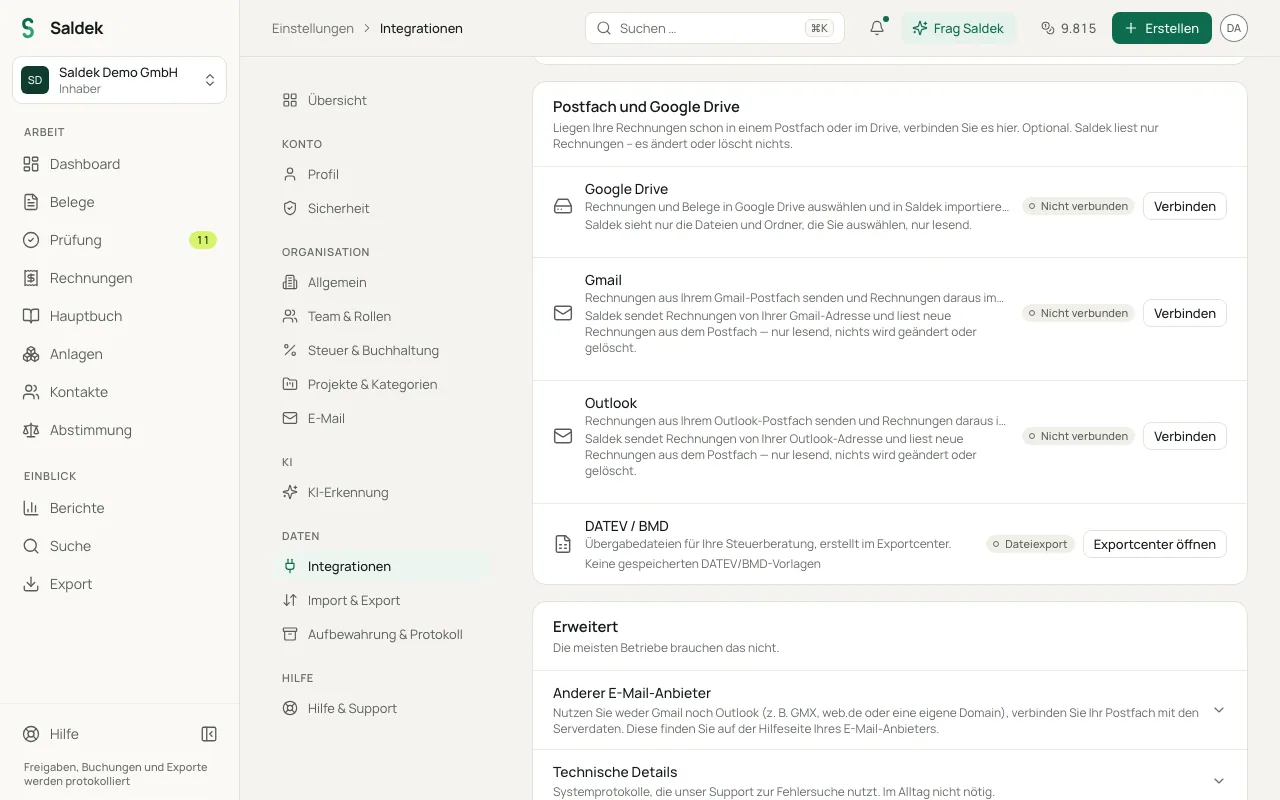
Connect Google Drive to Saldek to import documents from shared folders where scanners, document apps, or team members regularly save files.
Import files and folders from Google Drive
- Connect your account: Open “Settings” > “Integrations” and connect Google Drive.
- Select files and folders: Choose “Choose from Drive”, then select the document files or folders to import.
- Check the summary: After the import, Saldek displays a message such as “n documents imported, m were already in Saldek”.
Security and permissions
Saldek can access only the files and folders you explicitly authorize in the selection dialog. Only the organization member who connected the account can import files. Saldek detects documents that already exist and does not create duplicates. It skips files it cannot open, files larger than 25 MB, and files shared with anyone who has the link. The summary gives the reason for each skipped file.
Frequently asked questions
Can Saldek read my entire Google Drive?
No. Saldek can access only the files and folders you select in the file dialog.
What happens if I import a file that is already in Saldek?
Saldek detects files that are already in your account and lists them as existing documents in the import summary.
Can other members of my organization import files from my Drive?
No. Only the member who authorized the Google Drive connection can select and import files from it.
Last updated: