Invoices
Create an invoice
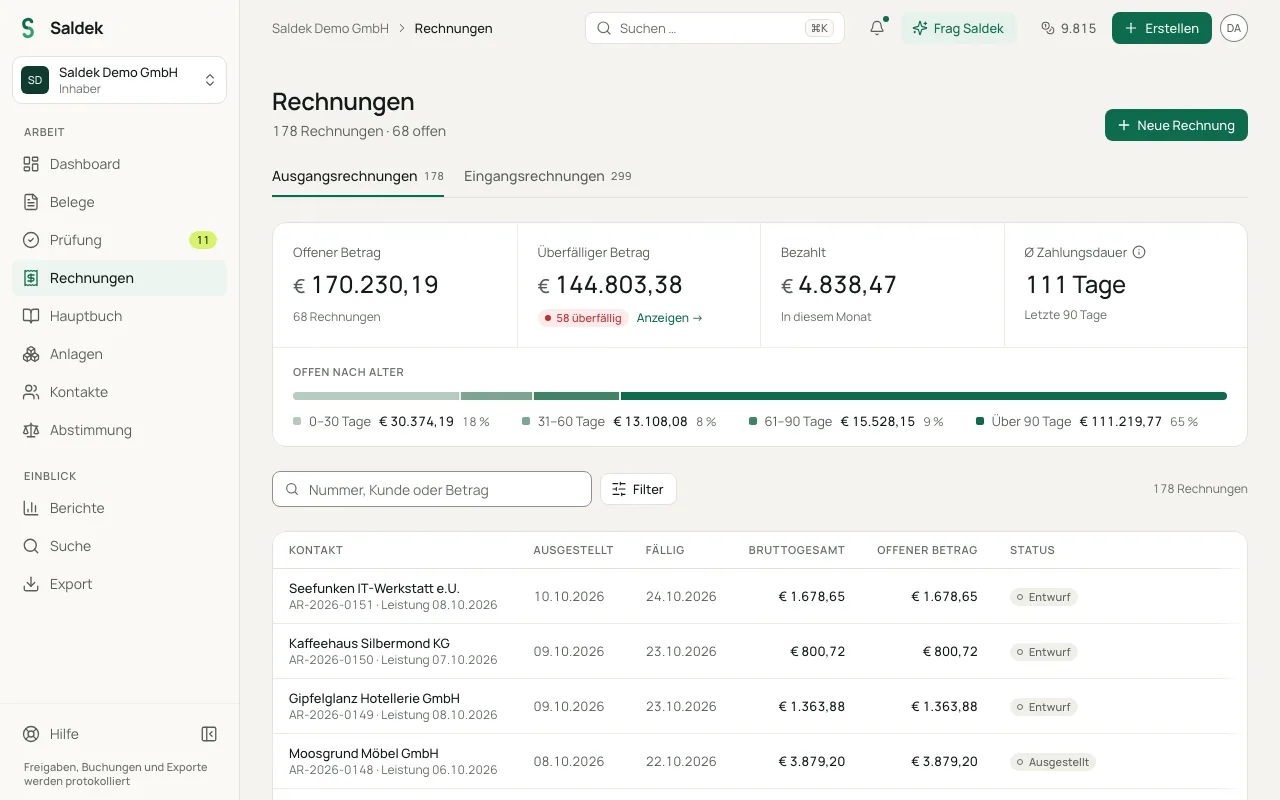
Manage outgoing and incoming invoices from “Invoices”. The overview shows outstanding and overdue amounts, the ageing breakdown, and the average payment time over the last 90 days.
Create an outgoing invoice
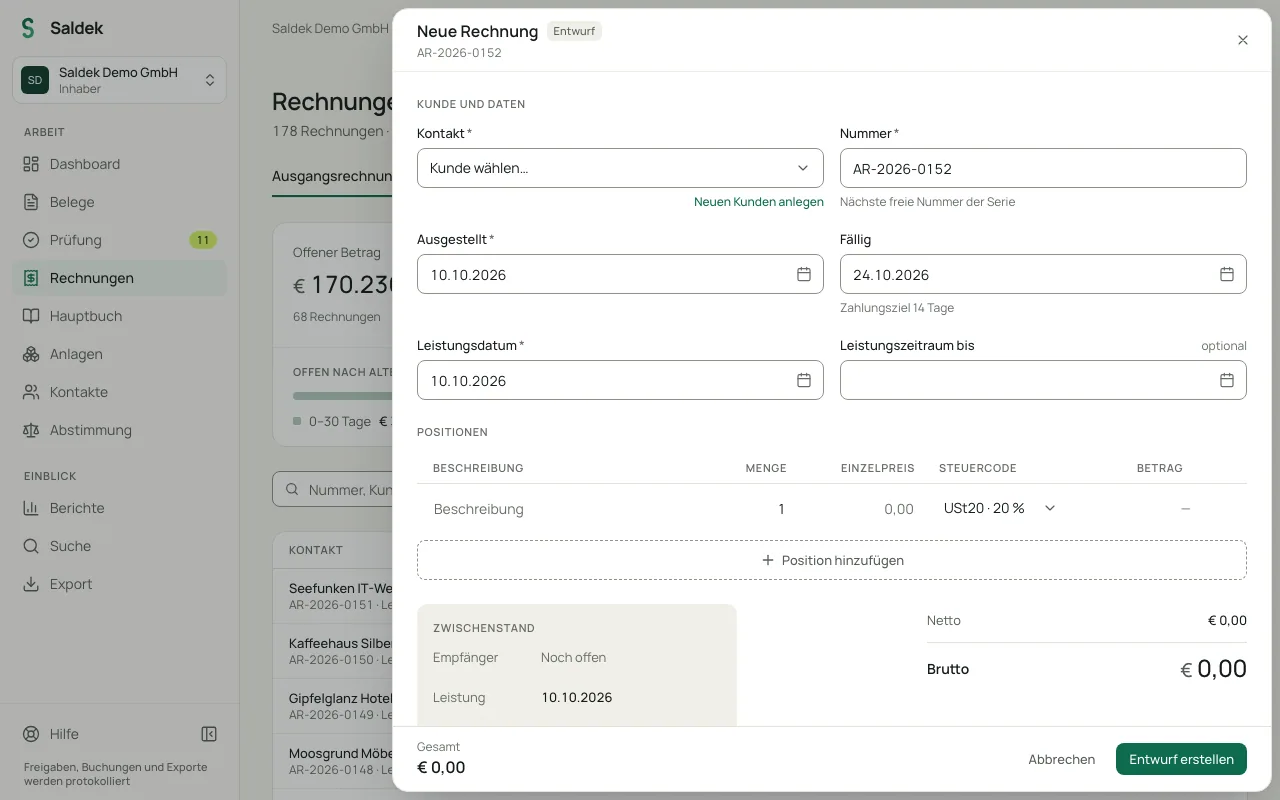
- Open “Invoices”: Select “Invoices” in the main navigation, then select “New invoice”, or select “Create” › “Sales invoice” at the top.
- Choose a customer: Select an existing contact from “Contacts” or create a new customer.
- Enter line items and tax: Add a description, quantity, and price. Choose the appropriate tax code for your country for each line.
- Set the due date: Choose when the invoice is due.
- Choose a project and design: If needed, choose the “Project” you are invoicing and the “Invoice design” for this invoice.
- Complete the invoice: Generate a PDF that follows the DIN 5008 standard. You can include a “GiroCode (EPC-QR)” for SEPA transfers by scan or a “Swiss QR-Bill (CH)” for Switzerland. If a bank account is missing for this, add it with “Add bank account”.
Small businesses, recurring invoices, and more
- Small businesses: When the small-business scheme applies, the invoice has no VAT and includes the statutory exemption notice (tax code KU/U30). The built-in revenue monitor warns you before you exceed the limits but does not block you.
- Recurring invoices: Duplicate a completed invoice as a recurring draft with “Clone recurring”. The copy keeps the invoice’s project. This is included from the “Business” plan and during the trial.
- Incoming invoices and SEPA payments: Saldek creates incoming invoices from documents you upload and approve under “Review”. For an open, approved incoming invoice, you can create a SEPA transfer file (pain.001) if you have added an EUR bank account and the supplier’s IBAN.
- Invoice design and logo: Under “Settings” › “General”, choose the “Invoice design” and upload your “Logo”, which appears on your invoices. For a single invoice, change the design in the invoice form.
- Cancel an invoice: In the invoice’s ⋯ menu, select “Cancel invoice”. The invoice is cancelled and kept as cancelled. If it has a booking draft that has not been posted, that draft is deleted; for a posted invoice, Saldek creates a reversal draft in the ledger for you to post. Once a payment has been recorded, the invoice can no longer be cancelled.
Frequently asked questions
Can I create recurring invoices?
Yes. Select “Clone recurring” on an existing invoice. Saldek creates a copy as a recurring draft. This is included from the “Business” plan and during the trial.
What applies to small businesses?
Small businesses issue invoices without VAT and include the statutory exemption notice. Saldek monitors your revenue limits and warns you if you exceed them, but does not block you.
How do I pay incoming invoices?
Download a SEPA payment file (pain.001) for online banking from an incoming invoice you have reviewed and approved. You need an active EUR bank account with IBAN/BIC and a valid supplier IBAN.
How do I cancel an invoice?
In the invoice’s ⋯ menu, select “Cancel invoice”. The invoice is kept as cancelled. If it is already posted, Saldek creates a reversal draft in the ledger for you to post; this cannot be undone. Once a payment has been recorded, the invoice can no longer be cancelled.
Last updated: