AI and review
Review and approve
“Review” is a key step in Saldek’s workflow. After extraction, the AI suggests an account, tax code, and amounts. Saldek posts the booking to the ledger only after you check and approve the document.
The review view
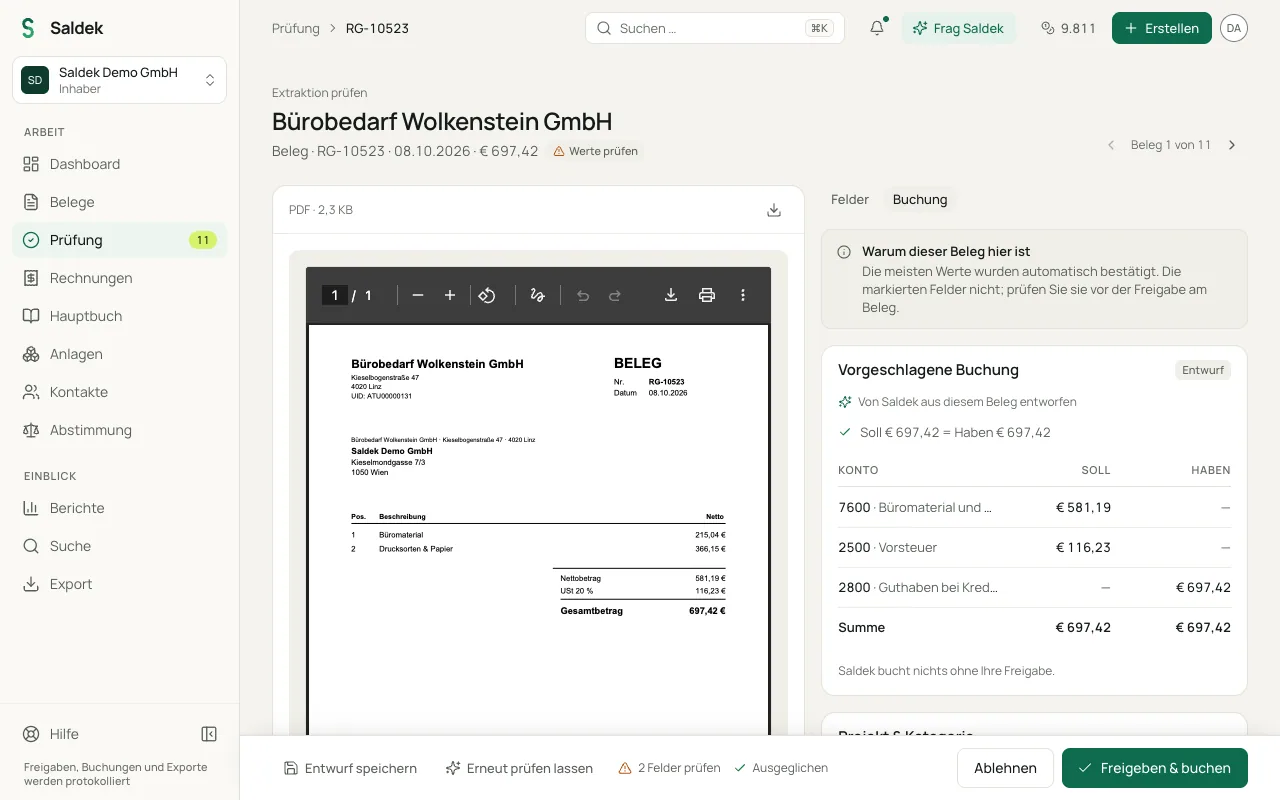
The queue under “Review” sorts documents by the attention they need, with values to check and notices at the top. Each row shows “Verified” or “Please check”. Open a document to see the original on the left and extracted fields, the marked values, plausibility checks, and the proposed journal entry on the right. Checks include whether the document date is in the future.
Approval workflow
- Open a document in the review queue: Select a document from the list, which is sorted by the attention it needs.
- Compare the fields with the original: Check the amounts, date, counterparty, and tax rates. Edit fields if needed, then select “Save Draft”.
- Check the booking suggestion: Review the suggested expense account and tax code.
- Approve or decline: Select “Approve & post” to post the booking, or “Approve & next” to move to the next document. If a document is illegible or incorrect, select “Ask AI to re-check” or “Decline”. A declined document keeps no draft entry.
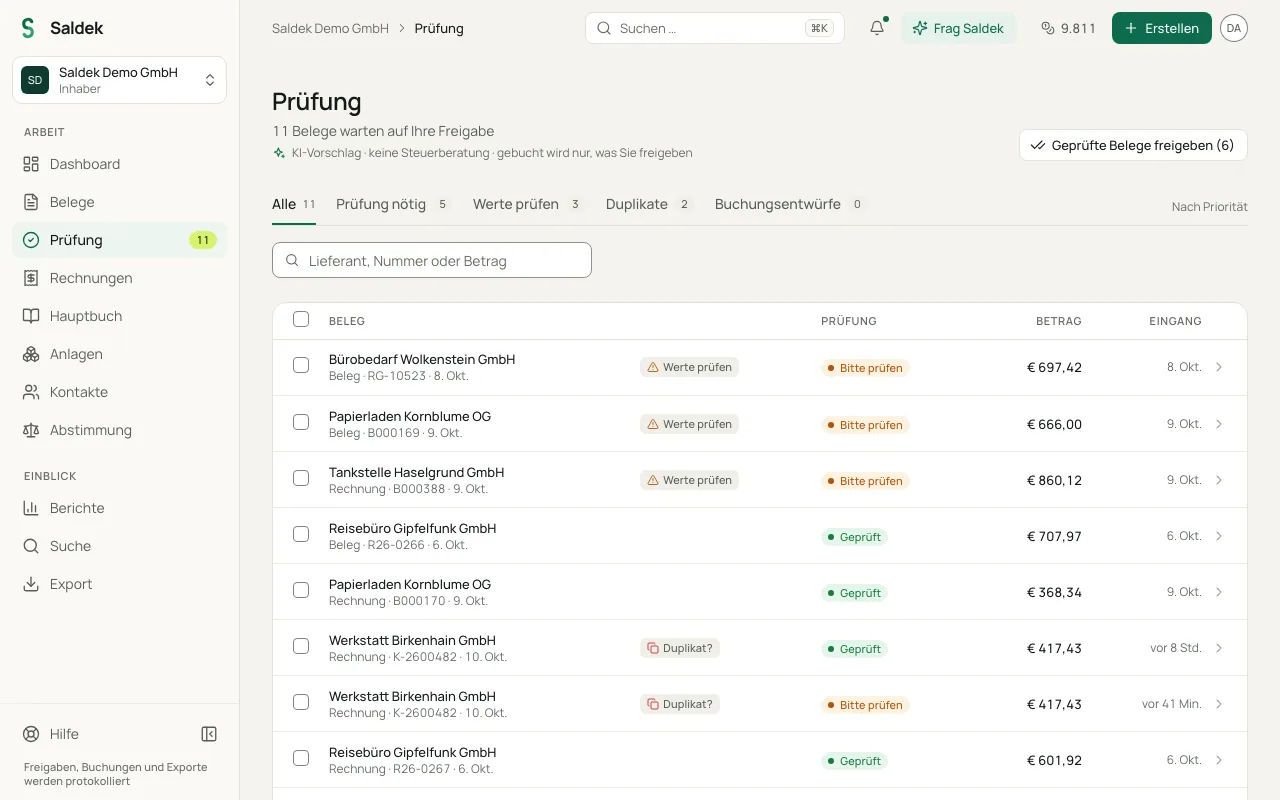
Documents Saldek verified and has no questions about can be approved together with “Approve verified documents”. You must confirm the action. Never included are possible duplicates, files with several invoices, documents that are not bookable, and documents you check once yourself (“Check once yourself”), such as a partial refund, a reverse-charge invoice, foreign VAT, or an unclear expense account. A reverse-charge invoice that follows an already approved check of the same supplier can be included.
More in the review view
- “Project & category”: Assign the document to a project and a category. Your choice is saved at once and applies to the document’s booking.
- “Expense account”: If Saldek asks for the account, choose it in the notice and select “Apply to the booking”.
- “Bought twice?”: If two purchases look the same, answer with “Both are correct” or “Double charge”.
- “Paid on”: With cash-basis accounting (E/A), enter the payment date here if Saldek does not know it yet.
- Fiscal year: A draft belongs to the fiscal year of its booking date. If the date lies in the twelve months after your last fiscal year (and not in the future), Saldek creates that year itself when it drafts. Documents dated before your books start are filed without review as “Before your books start”. If the year is otherwise not open, Saldek creates no draft and names the reason; add a missing year under “Settings” › “General” › “Fiscal years”.
- “Passenger car (PKW): no input VAT deduction”: If your “Vehicle costs” setting means Saldek drafts a vehicle cost without input VAT, the draft shows this note. Change the setting under “Settings” › “Tax & accounting”.
- “Post again”: If a document was approved but its entry could not be posted, for example because its date lies in no open fiscal year, the review view names the reason. Fix it and select “Post again”.
Rules by accounting method and document type
- Income-expense accounting (E/A): Saldek books the transaction on the payment date, not the document date.
- Small businesses: Saldek does not deduct input tax and books the full gross amount as an expense.
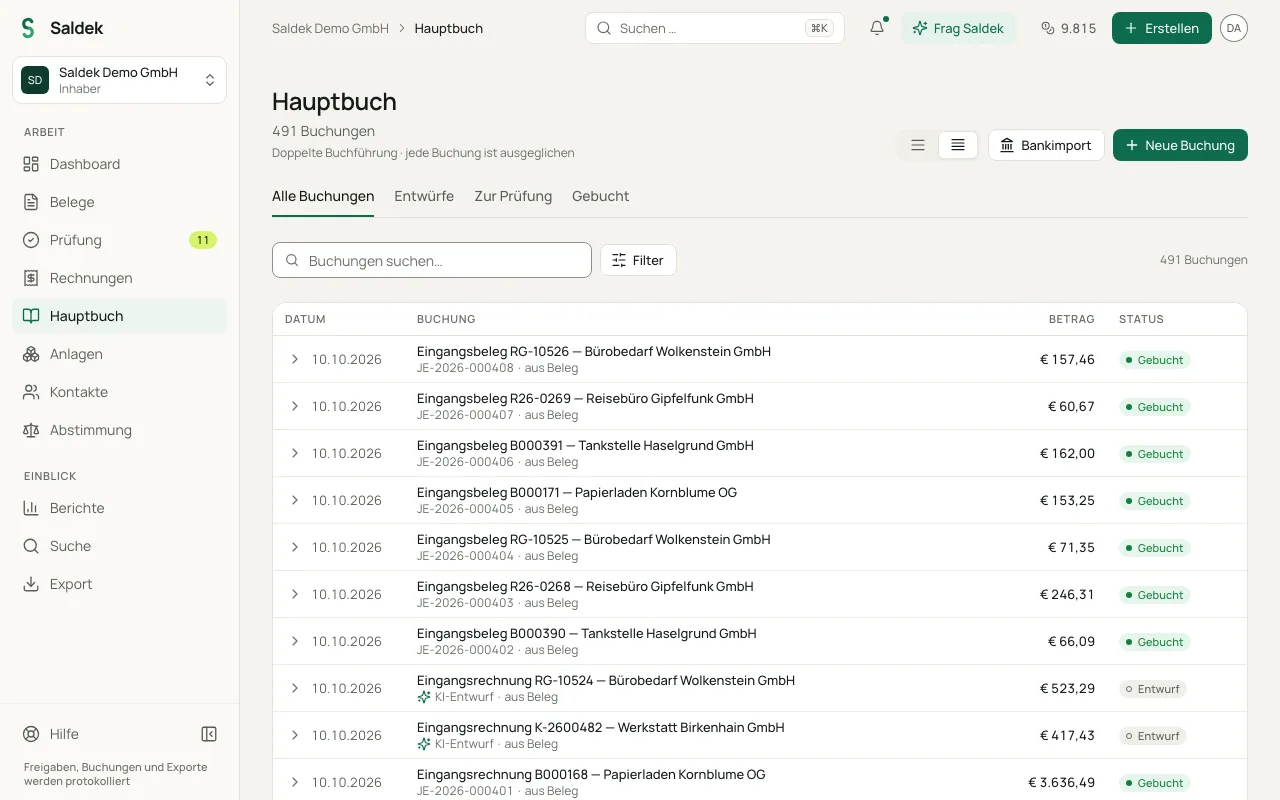
- Outgoing invoices: Creating an outgoing invoice adds a draft booking to “Review”. You must approve it before Saldek posts it.
- Payments: Recording a payment also adds a draft to “Review”. Saldek does not post it automatically.
Frequently asked questions
Does the AI post bookings on its own?
No. Saldek does not post bookings automatically. The AI prepares drafts; a person with the “Accountant” role or a higher role must approve each booking.
How can I correct a booking that has already been posted?
Posted bookings are read-only. Correct one with a reversal entry that swaps debit and credit. The original document remains unchanged in the archive.
Who can approve and post documents?
People with the “Accountant”, “Admin”, or “Owner” role can post bookings. “Reviewer”, “Member”, and “Viewer” roles do not include posting permissions.
Last updated: